Mobile App Settings
Overview
Mobile App Settings configures the appearance and features of your store's mobile application. Customize the app icon, splash screen, color scheme, and enable features like merchant registration and in-app chat.
Accessing Mobile App Settings
Navigate to: Settings > Mobile App from the sidebar menu
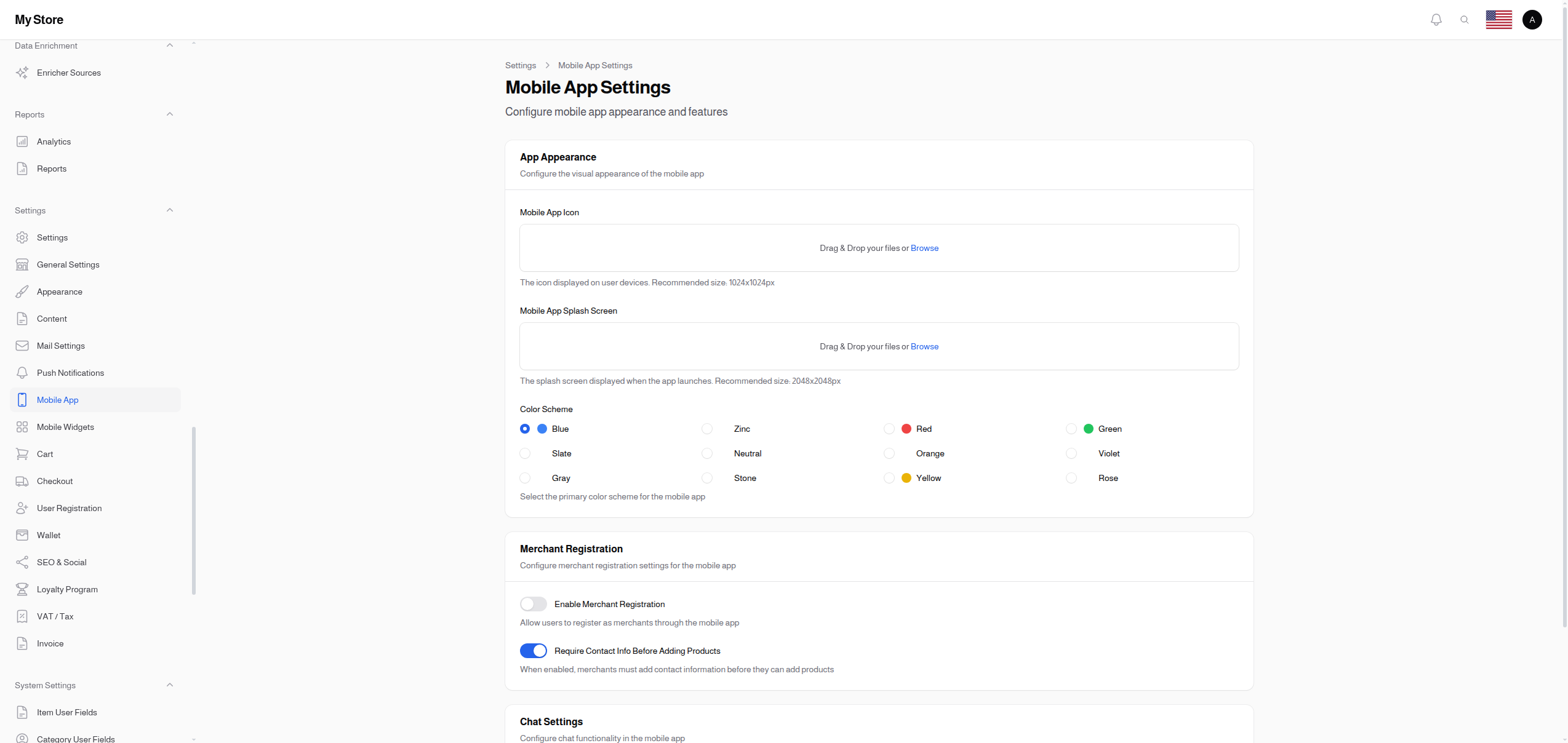
App Appearance
Mobile App Icon
- Type: Image upload
- Recommended Size: 1024x1024px (square)
- Format: PNG with transparency preferred
- Purpose: Icon displayed on mobile device home screens
Best Practices:
- Simple, recognizable design
- Works well at small sizes (as small as 29x29px on some devices)
- No text (may be unreadable when small)
- High contrast
- Square ratio required
Fallback: If not set, uses Shop Logo from General Settings.
Mobile App Splash Screen
- Type: Image upload
- Recommended Size: 2048x2048px
- Format: PNG or JPG
- Purpose: Image shown when app launches
Best Practices:
- Keep important content in center (safe area)
- Avoid text near edges
- Use your brand colors
- Represents your store well
Fallback Order:
- Mobile App Splash Screen (if set)
- Mobile App Icon (if set)
- Shop Logo (default)
Color Scheme
- Type: Radio buttons with color preview
- Default: Blue
- Purpose: Primary color palette for mobile app
Available Color Schemes:
| Color | Best For |
|---|---|
| Blue | Professional, trustworthy (default) |
| Slate | Neutral, modern |
| Gray | Classic, minimal |
| Zinc | Cool, sophisticated |
| Neutral | Balanced, versatile |
| Stone | Warm, earthy |
| Red | Bold, energetic |
| Orange | Friendly, creative |
| Yellow | Cheerful, attention-grabbing |
| Green | Natural, growth-focused |
| Violet | Luxury, creative |
| Rose | Elegant, romantic |

Choosing a Color Scheme:
- E-commerce: Blue (trust), Green (organic products)
- Fashion: Rose, Violet (elegance)
- Food: Orange, Red (appetite stimulation)
- Tech: Slate, Zinc (modern feel)
Affects: Buttons, links, active states, accents throughout the mobile app.
Merchant Registration
Enable Merchant Registration
- Type: Toggle switch (On/Off)
- Default: Off (disabled)
- Purpose: Allow customers to sign up as vendors/merchants through the mobile app
When Enabled:
- Mobile app shows "Become a Merchant" option
- Users can register vendor accounts from their phones
- Users can list products for sale
- Creates a marketplace experience
When Disabled:
- Only admin can create merchant accounts
- Mobile app is customer-focused only
- Traditional single-vendor store
Use Cases:
- Marketplace platforms
- Multi-vendor stores
- Dropshipping models
- Peer-to-peer selling
Require Contact Info Before Adding Products
- Type: Toggle switch (On/Off)
- Default: Off (not required)
- Purpose: Force merchants to add contact info before listing products
- Applies To: Mobile app only (not web admin)
When Enabled:
- Merchants must fill contact details first
- Cannot add products until contact info is complete
- Ensures customers can reach sellers
When Disabled:
- Merchants can add products immediately
- Contact info can be added later
Chat Settings
Enable Chat in Mobile App
- Type: Toggle switch (On/Off)
- Default: On (enabled)
- Purpose: Allow customers to chat with vendors via the mobile app
When Enabled:
- Chat icon appears on product pages
- Customers can message vendors directly
- Real-time or near-real-time messaging
- Builds customer-vendor relationship
When Disabled:
- No chat functionality in mobile app
- Customers use other contact methods only
Best For:
- Marketplace stores
- Custom order businesses
- High-value items requiring consultation
- Stores with pre-sale support needs
Mobile Widget Configuration
For configuring the mobile app home screen widgets (sliders, categories, products, banners), see Mobile Widgets.
Saving Changes
Click the Save button at the bottom of the page to apply your changes.
Note: Some changes may require app users to restart the mobile app to see updates.
Related Sections
- Mobile Widgets - Configure mobile app home screen
- Push Notifications - OneSignal configuration
- General Settings - Store logo (used as fallback)
- Chat Sessions - View and manage chat conversations