Mail Settings
Overview
Mail Settings configures your email delivery system using SMTP. This enables your store to send order confirmations, notifications, password resets, and other automated emails to customers.
Accessing Mail Settings
Navigate to: Settings > Mail Settings from the sidebar menu
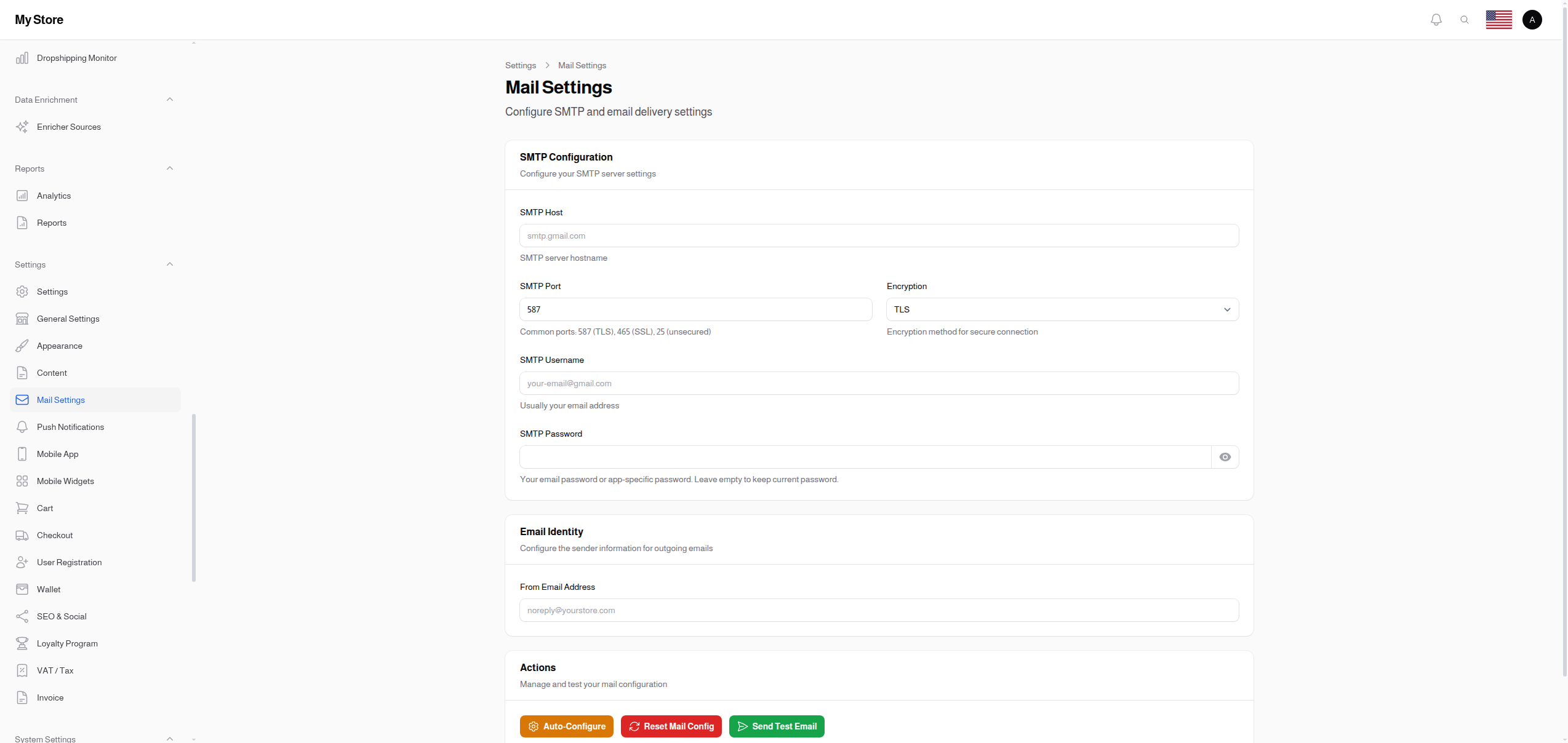
SMTP Configuration
SMTP Host
- Type: Text input
- Placeholder: smtp.gmail.com
- Purpose: Your email server hostname
Common SMTP Hosts:
| Provider | SMTP Host |
|---|---|
| Gmail | smtp.gmail.com |
| Outlook/Office 365 | smtp.office365.com |
| Yahoo | smtp.mail.yahoo.com |
| Custom Domain | mail.yourdomain.com |
SMTP Port
- Type: Number input
- Default: 587
- Purpose: Port number for email server connection
Common Ports:
| Port | Encryption | Description |
|---|---|---|
| 587 | TLS | Recommended, most widely supported |
| 465 | SSL | Older standard, still widely used |
| 25 | None | Unsecured, not recommended |
Encryption
- Type: Dropdown selection
- Default: TLS
- Purpose: Security protocol for email transmission
Options:
- TLS: Transport Layer Security (recommended)
- SSL: Secure Sockets Layer (older standard)
- None: No encryption (not secure, avoid if possible)
Recommendation: Always use TLS or SSL for security.
SMTP Username
- Type: Text input
- Placeholder: [email protected]
- Purpose: Login username for email server
Usually your full email address. Examples:
SMTP Password
- Type: Password input (revealable)
- Purpose: Password for email server authentication
Security Features:
- Not visible when typing (password field)
- Click eye icon to reveal temporarily
- Empty field when editing (for security)
- Leave empty to keep existing password unchanged
Gmail Users: Use an App-Specific Password, not your regular Gmail password. Generate one at: Google Account → Security → 2-Step Verification → App passwords
Email Identity
From Email Address
- Type: Email input
- Placeholder: [email protected]
- Purpose: Sender email address for outgoing emails
Best Practices:
- Use your own domain (not Gmail/Yahoo for professional stores)
- Match with SMTP Username for best deliverability
- Common formats:
- [email protected]
- [email protected]
- [email protected]
Actions
Three action buttons for managing your mail configuration:

Auto-Configure
- Visibility: Only visible to maintainer IPs
- Purpose: Automatically set up mail using Mailcow and Cloudflare DNS
When clicked:
- Creates mailbox on Mailcow server
- Configures DKIM, SPF, and DMARC records (if Cloudflare is configured)
- Populates all SMTP fields automatically
Reset Mail Config
- Purpose: Clear all mail settings
- Action: Sets all mail fields to null (empty)
- Warning: Cannot be undone
- Confirmation: Required before executing
Use Cases:
- Starting fresh with a new mail provider
- Troubleshooting configuration issues
Send Test Email
- Purpose: Verify mail configuration works
Process:
- Click the button
- Enter a test email address in the popup
- System sends a test message
- Check inbox for the test email
Test Email Contains:
- Confirmation that mail is working
- Timestamp of the test
- Store name
If Failed: Check SMTP settings, password, and firewall rules.
Common Provider Setup
Gmail Setup
- Enable 2-Step Verification on your Google Account
- Generate an App Password:
- Go to Google Account → Security → App passwords
- Select "Mail" and your device
- Copy the generated password
- Configure settings:
- Host: smtp.gmail.com
- Port: 587
- Encryption: TLS
- Username: [email protected]
- Password: (App Password, not your regular password)
Custom Domain Setup
- Contact your hosting provider for SMTP details
- Typical settings:
- Host: mail.yourdomain.com
- Port: 587 or 465
- Encryption: TLS or SSL
- Username: your full email address
- Password: your email password
Troubleshooting
Emails not sending?
- Verify SMTP credentials are correct
- Check if your hosting allows outbound SMTP
- Try port 465 with SSL if 587/TLS fails
- Check spam/junk folder for test emails
Authentication errors?
- Gmail: Use App Password, not regular password
- Ensure 2FA is enabled for Gmail
- Check if "Less secure apps" needs to be enabled (not recommended)
Saving Changes
Click the Save button at the bottom of the page to apply your changes. Always send a test email after making changes.
Related Sections
- Push Notifications - OneSignal push notifications
- General Settings - Store name used in email headers