General Settings
Overview
General Settings contains fundamental store configuration including your store identity, regional settings, and number formatting controls.
Accessing General Settings
Navigate to: Modules > System Settings > General Settings
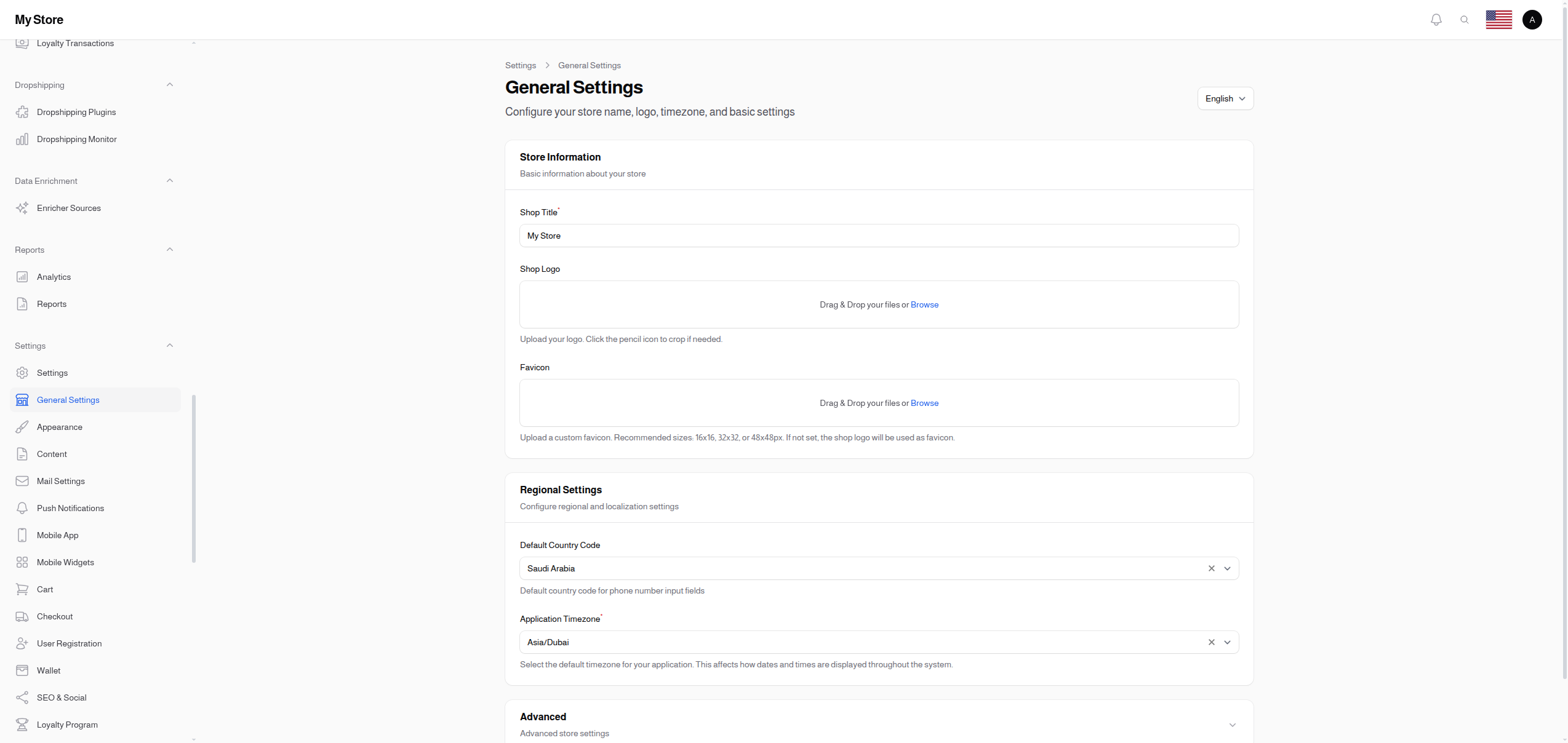
Store Information
Shop Title Required
- Type: Text input
- Purpose: Your store's display name shown throughout the application
- Validation: Required, maximum 255 characters
- Translatable: Yes - set different names for each language
Where It Appears:
- Browser tab title
- Email headers
- Mobile app title
- Header/navigation bar
- Invoice documents
Examples: "My Electronics Store", "Fashion Boutique", "Organic Foods Market"
Shop Tagline
- Type: Text input
- Purpose: A short slogan or description for your store
- Translatable: Yes - set different taglines for each language
Where It Appears:
- Below the shop title in headers
- SEO meta descriptions
- Social media sharing previews
Examples: "Quality Electronics at Great Prices", "Your Fashion Destination", "Fresh & Organic Since 2020"
Shop Logo
- Type: Image upload
- Purpose: Primary visual brand identity for your store
- Format: Image file (PNG, JPG, GIF, SVG, WebP)
Usage:
- Website header
- Email templates
- Invoice documents
- Mobile app (if mobile app icon not set)
- Favicon fallback (if custom favicon not uploaded)
Recommendation: Upload a square or wide logo with transparent background for best results.
Favicon
- Type: Image upload
- Purpose: Small icon displayed in browser tabs and bookmarks
- Formats: ICO, PNG, JPG, GIF, SVG, or WebP
- Recommended Sizes: 16x16px, 32x32px, or 48x48px
- Fallback: If not set, the Shop Logo will be used as favicon
Best Practice: Use a simple, recognizable icon that works at small sizes.
Regional Settings
Default Country Code
- Type: Dropdown selection (searchable)
- Purpose: Default country for phone number input fields
- Default: SA (Saudi Arabia)
- Options: All active countries from your system
Usage:
- Registration forms
- Checkout phone number fields
- User profile phone inputs
Timezone
- Type: Dropdown selection (searchable)
- Purpose: Set the default timezone for your application
- Default: Asia/Dubai
Affects:
- Order timestamps
- Report date ranges
- Scheduled tasks
- Date/time display throughout the system
Note: Select the timezone where your primary business operates. This affects how dates and times are displayed to both customers and administrators.
Number Formatting
Configure how prices and numbers are displayed throughout the store.
Decimal Places
- Type: Number input
- Default: 2
- Purpose: Number of decimal places for prices and amounts
Examples:
| Setting | Display |
|---|---|
| 0 | $100 |
| 1 | $100.0 |
| 2 | $100.00 |
| 3 | $100.000 |
Use Cases:
- 0 decimals: Stores with whole number pricing
- 2 decimals: Standard pricing format (most common)
- 3 decimals: Currencies like Kuwaiti Dinar (KWD) or Bahraini Dinar (BHD)
Auto Trim Trailing Zeros
- Type: Toggle switch (On/Off)
- Default: Off
- Purpose: Automatically remove unnecessary trailing zeros from prices
When Enabled:
| Original | Displayed |
|---|---|
| $10.00 | $10 |
| $10.50 | $10.5 |
| $10.75 | $10.75 |
When Disabled:
- All prices display with the full number of decimal places
- $10.00 stays as $10.00
Recommendation: Enable for cleaner price displays when you have mixed pricing (whole numbers and decimal prices).
Advanced Settings
These settings are hidden under a collapsed "Advanced" section on the settings page.
Show Trinavo Branding in Footer
- Type: Toggle switch (On/Off)
- Default: On
- Purpose: Display "Powered by Trinavo" branding in the store footer
Availability:
- Paid Plans: Can be toggled on or off
- Free Plans: Always enabled and cannot be disabled
When Enabled:
A footer bar is displayed at the bottom of your store showing: "Online Store powered by Trinavo" with links to trinavo.com
When Disabled (paid plans only):
The Trinavo branding footer is hidden from your store.
Saving Changes
Click the Save button at the bottom of the page to apply your changes. Changes take effect immediately.
Related Sections
- Appearance Settings - Theme and visual styling
- Content Settings - About us and contact information
- Languages - Manage available languages
- Currencies - Configure store currencies