Appearance Settings
Overview
Appearance Settings controls the visual theme, typography, and color scheme of your storefront. Customize how your store looks to create a unique brand experience for your customers.
Accessing Appearance Settings
Navigate to: Settings > Appearance from the sidebar menu
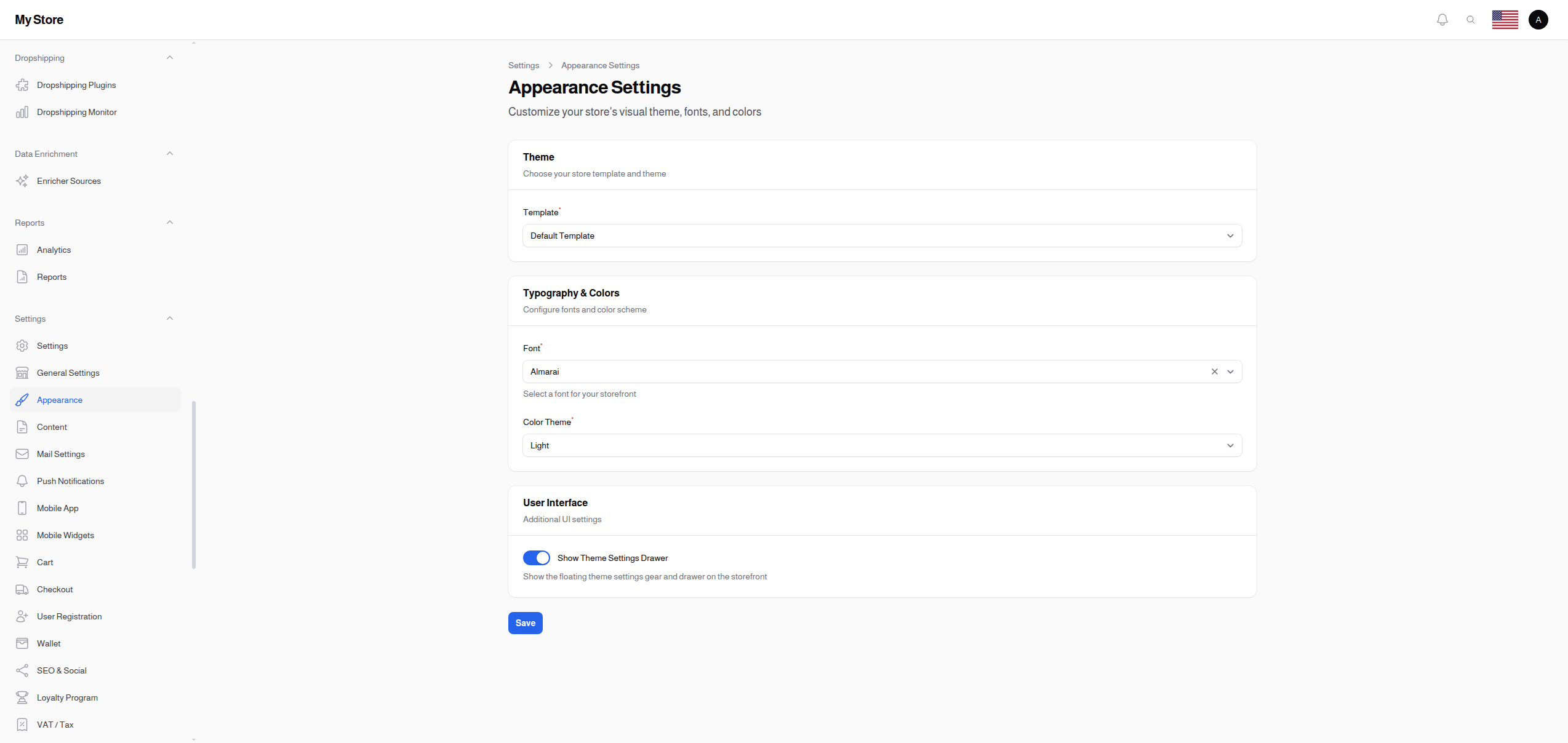
Theme
Template Required
- Type: Dropdown selection
- Default: Default Template
- Purpose: Choose the storefront theme/template
Options:
- Default Template: Standard storefront layout with pre-designed pages
- Dynamic Template: Customizable page builder template for full design control
Dynamic Template Feature:
When "Dynamic Template" is selected, a button appears: "Open Themes Manager (Remember to save your changes first)". This opens the page builder in a new tab where you can:
- Design custom page layouts
- Add and arrange content blocks
- Create unique landing pages
- Customize product listing layouts
Typography & Colors
Font
- Type: Dropdown selection (searchable)
- Default: Almarai
- Purpose: Set the typography for your entire storefront
Available Fonts:
The system includes a curated selection of web fonts optimized for both Latin and Arabic scripts:
- Arabic-friendly: Almarai, Cairo, Tajawal
- Modern Sans-serif: Poppins, Roboto, Inter, Montserrat
- Universal: Open Sans, Lato
Note: The selected font is loaded from Google Fonts or your theme's font library.
Color Theme Required
- Type: Dropdown selection
- Default: Light
- Purpose: Set the overall color scheme for the storefront
Options:
| Theme | Description |
|---|---|
| Light | Traditional light background with dark text |
| Dark | Dark background with light text (easier on eyes at night) |
| Auto | Automatically switches based on user's system preferences |
Note: This affects the entire storefront interface, not the admin panel.
User Interface
Show Theme Settings Drawer
- Type: Toggle switch (On/Off)
- Default: On (enabled)
- Purpose: Display a floating settings gear icon on the storefront
When Enabled:
- Customers see a gear icon (usually bottom-right corner)
- Clicking opens a drawer with theme customization options
- Customers can change colors, layout preferences, or theme mode
When Disabled:
- No floating gear icon
- Cleaner interface
- Customers use only the theme settings you've configured
Design Tips
Choosing the Right Theme
- Light Theme: Best for stores with colorful product images, traditional e-commerce feel
- Dark Theme: Great for electronics, gaming, luxury products, or modern aesthetics
- Auto Theme: Provides flexibility for customers who prefer dark mode on their devices
Font Selection
- Arabic stores: Use Almarai, Cairo, or Tajawal for best Arabic text rendering
- International stores: Open Sans and Lato work well for both RTL and LTR languages
- Modern feel: Poppins, Inter, or Montserrat for a contemporary look
Theme Settings Drawer
Consider disabling the theme settings drawer if:
- You want a consistent brand experience across all customers
- Your design relies on specific color choices
- You find it clutters the interface
Saving Changes
Click the Save button at the bottom of the page to apply your changes. Changes take effect immediately on the storefront.
Related Sections
- Themes Manager - Advanced theme customization with page builder
- General Settings - Store name and logo
- Content Settings - Footer and branding content